Grammar of data visualization

Lecture 2

John Zito

Duke University
STA 199 Spring 2026

2026-01-14

Warm-up

Lab tomorrow

What to expect:

  • Your first graded assignment;
  • We are taking attendance;
  • You will work in randomly-assigned teams;
  • Each student submits their own work;
  • Assignment due at the end of your lab;
  • You will have a new repo to clone;
  • TA will review setup and workflow (same as we did in lecture this week);
  • We know it’s early days. Do not panic about your progress.

Outline

  • Last time:

    • We introduced you to the course toolkit;

    • You cloned your ae repositories and rendered your first Quarto document;

  • Today:

    • We will finish the application exercise, and get an introduction to Git, GitHub, and Quarto;

    • We will introduce data visualization;

    • Time permitting, we’ll start a new AE to practice.

From last time

Tour: Quarto (and more Git + GitHub)

Option 2:

Go to RStudio and open the document ae-01-income-inequality.qmd.


Tour recap: Quarto
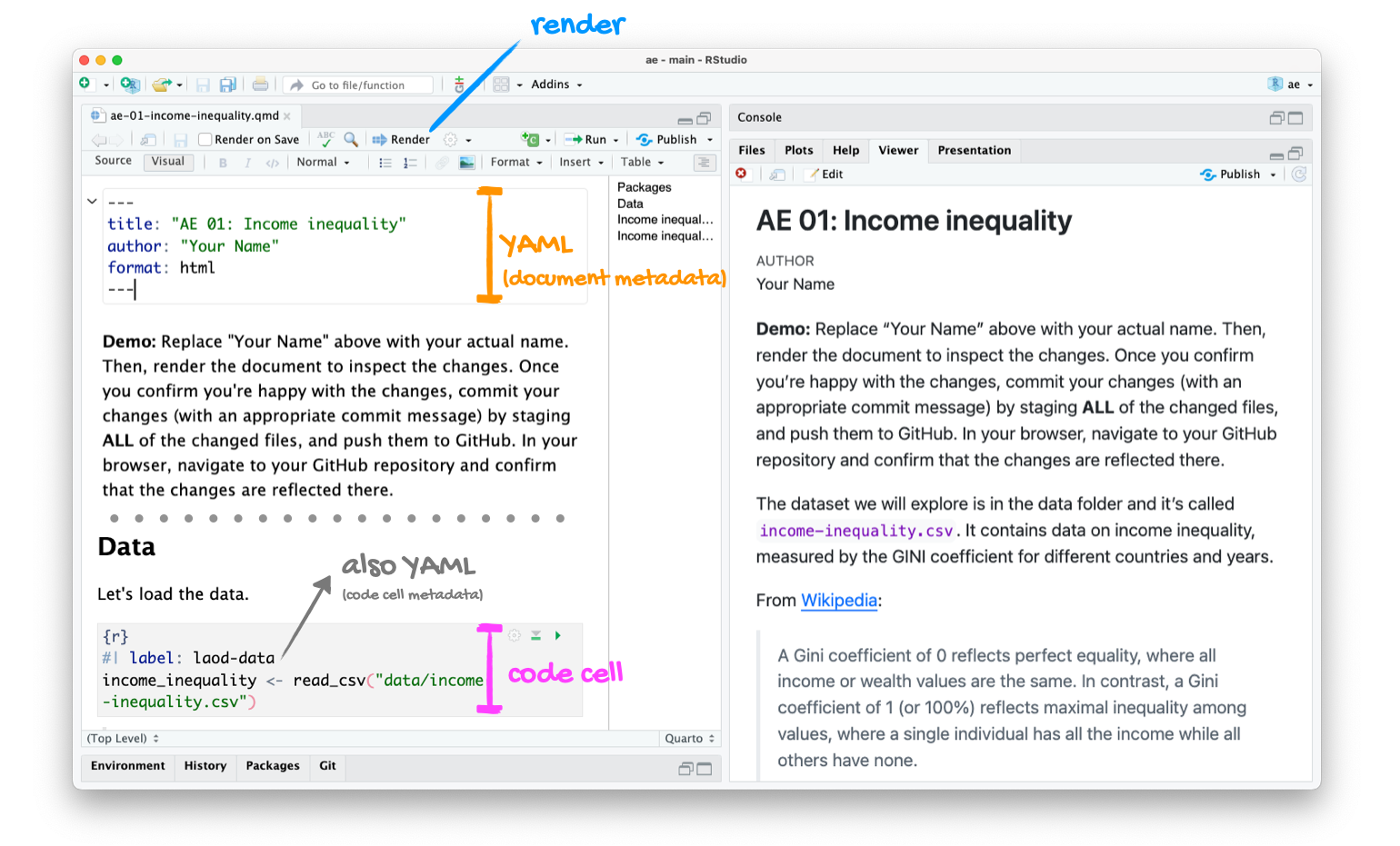
RStudio IDE with a Quarto document, source code on the left and output on the right. Annotated to show the YAML, a link, a header, and a code cell.


Tour recap: Git + GitHub

Once we made changes to our Quarto document, we

  • went to the Git pane in RStudio

  • staged our changes by clicking the checkboxes next to the relevant files

  • committed our changes with an informative commit message

  • pulled from GitHub to make sure we had the latest version of our repo

  • pushed our changes to our application exercise repos

  • confirmed on GitHub that we could see our changes pushed from RStudio

How will we use Quarto?

  • Every application exercise, lab, HW, project, take-home, etc. is a Quarto document;
  • You’ll always have a template Quarto document to start with;
  • The amount of scaffolding in the template will decrease over the semester.

Data visualization

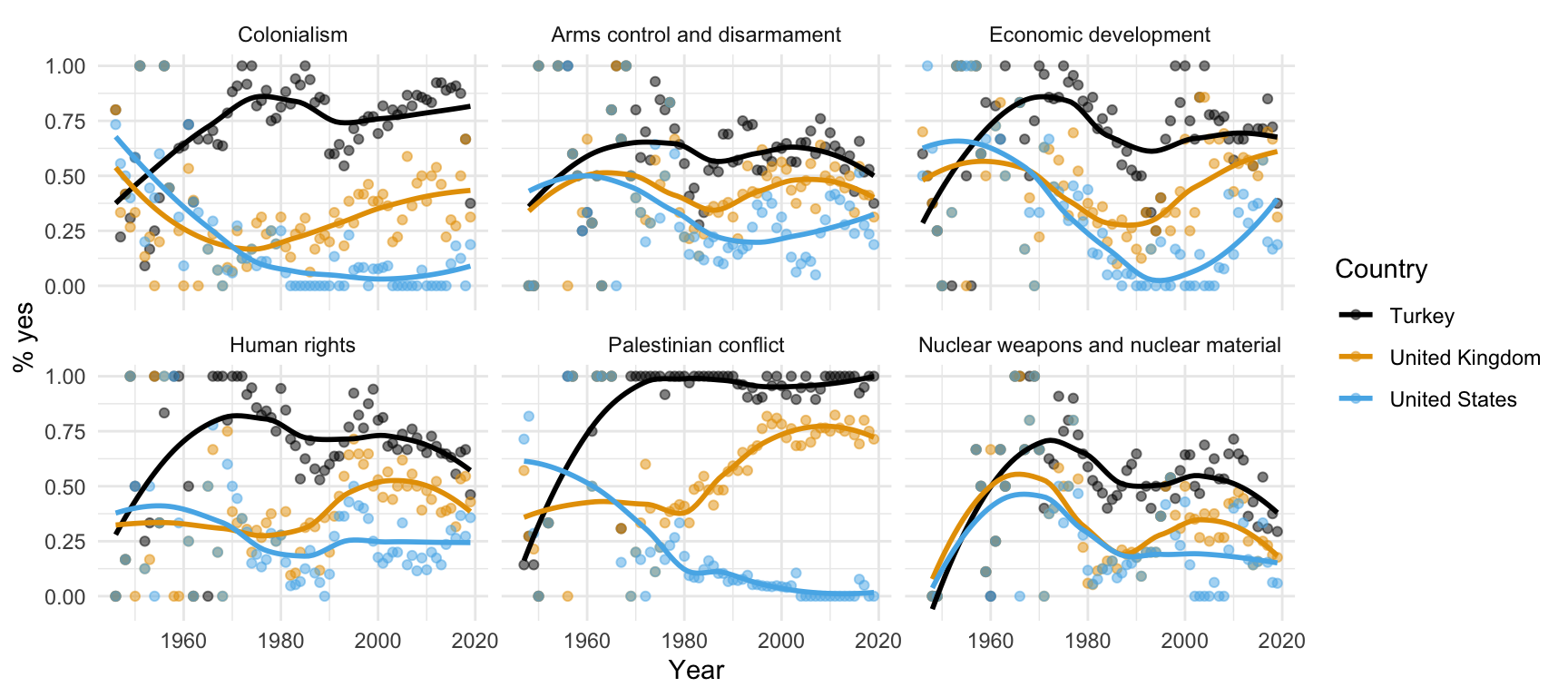
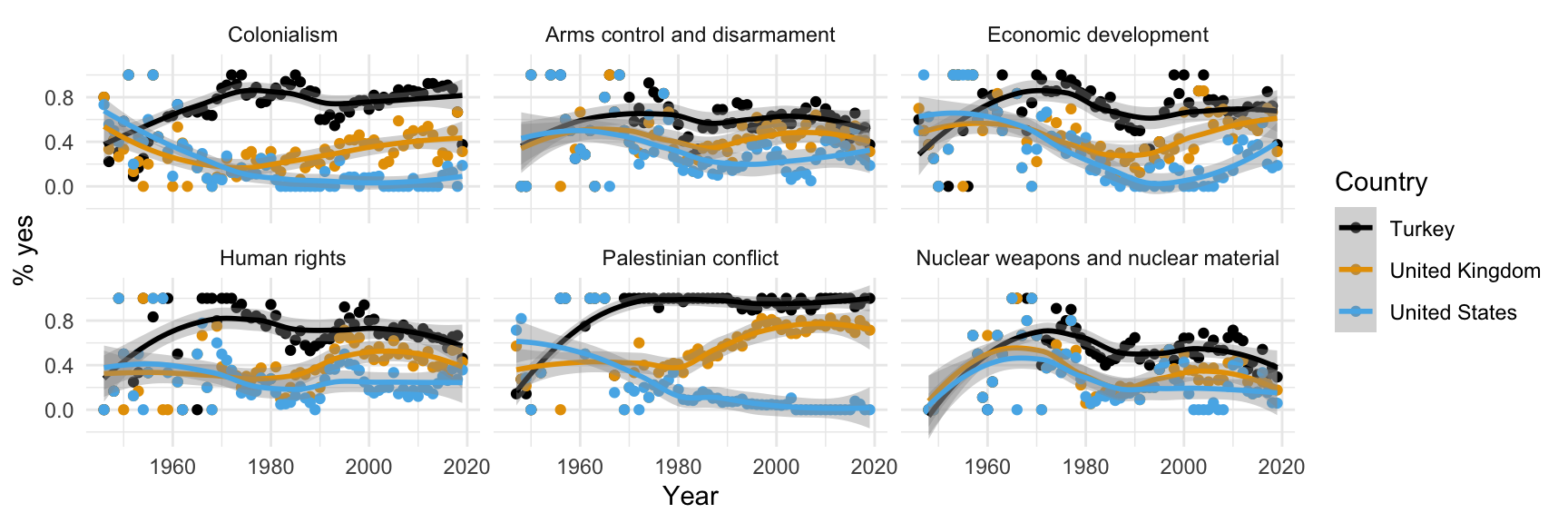
What does this picture communicate?

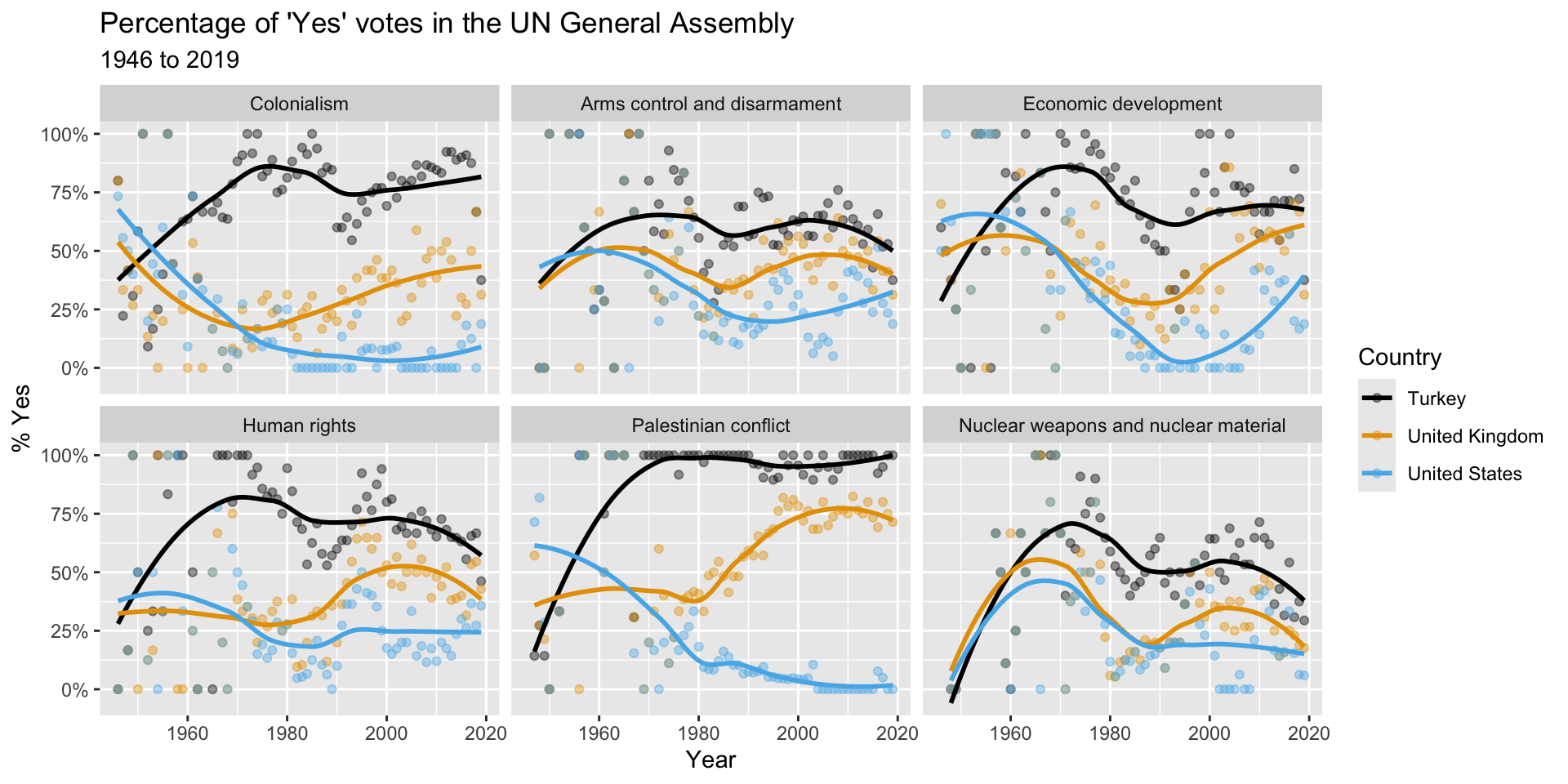
Remember this visualization from the code along video – what was it about?
Data science lessons

Are you asking a question that your data could actually answer?

  • A “Yes” vote is not necessarily an approving vote. It depends how the resolution was worded;
  • If your question is “where do countries stand on these issues, both relative to one another and over time,” the picture doesn’t actually have an answer;
  • It’s only useful for seeing if countries are in agreement with one another or not;
  • Precisely what they are agreeing about is ambiguous.

Data science lessons (continued)

This class is about technique bolstered by good taste.

  • The plot is fairly technically sophisticated (lots of moving parts), and it looks rather attractive;
  • We certainly want you to learn how to create something like that;
  • But after you’re done admiring it, your good taste should kick in;
  • Is this picture actually communicating effectively.

Data science lessons (continued)

If a reader has to squint at your picture for more than 30 seconds (and that’s being generous) in order to understand it, you need to start over.

  • If you make the reader work too hard, they will take the path of least resistance: skip the picture altogether or default to the most facile interpretation;
  • On the UN pic, many reckless readers might assume Yes = Approve and misread.

Let’ see…

how the sausage is made!

Load packages

library(unvotes)
library(tidyverse)
library(ggthemes)

Prepare the data

us_uk_tr_votes <- un_votes |>
  inner_join(un_roll_calls, by = "rcid") |>
  inner_join(un_roll_call_issues, by = "rcid", relationship = "many-to-many") |>
  filter(country %in% c("United Kingdom", "United States", "Turkey")) |>
  mutate(year = year(date)) |>
  group_by(country, year, issue) |>
  summarize(percent_yes = mean(vote == "yes"), .groups = "drop")

Note

Let’s leave these details aside for a bit, we’ll revisit this code at a later point in the semester. For now, let’s agree that we need to do some “data wrangling” to get the data into the right format for the plot we want to create. Just note that we called the data frame we’ll visualize us_uk_tr_votes.

View the data

us_uk_tr_votes
# A tibble: 1,212 × 4
   country  year issue                        percent_yes
   <chr>   <dbl> <fct>                              <dbl>
 1 Turkey   1946 Colonialism                        0.8  
 2 Turkey   1946 Economic development               0.6  
 3 Turkey   1946 Human rights                       0    
 4 Turkey   1947 Colonialism                        0.222
 5 Turkey   1947 Economic development               0.5  
 6 Turkey   1947 Palestinian conflict               0.143
 7 Turkey   1948 Colonialism                        0.417
 8 Turkey   1948 Arms control and disarmament       0    
 9 Turkey   1948 Economic development               0.375
10 Turkey   1948 Human rights                       0.167
# ℹ 1,202 more rows

Visualize the data

# code to visualize the data

The bottom line, at the top

Each line of code adds an element to the plot.

ggplot(
  us_uk_tr_votes, 
  aes(x = year, y = percent_yes, color = country)
  ) +
  geom_point(alpha = 0.5) +
  geom_smooth(se = FALSE) +
  facet_wrap(~issue) +
  scale_color_colorblind() +
  labs(
    x = "Year", 
    y = "% yes", 
    color = "Country"
  ) +
  theme_minimal()

Let’s take it one line at a time.

Step 1. Prepare a canvas for plotting

ggplot(data = us_uk_tr_votes)

Step 2. Map variables to aesthetics

Map year to the x aesthetic
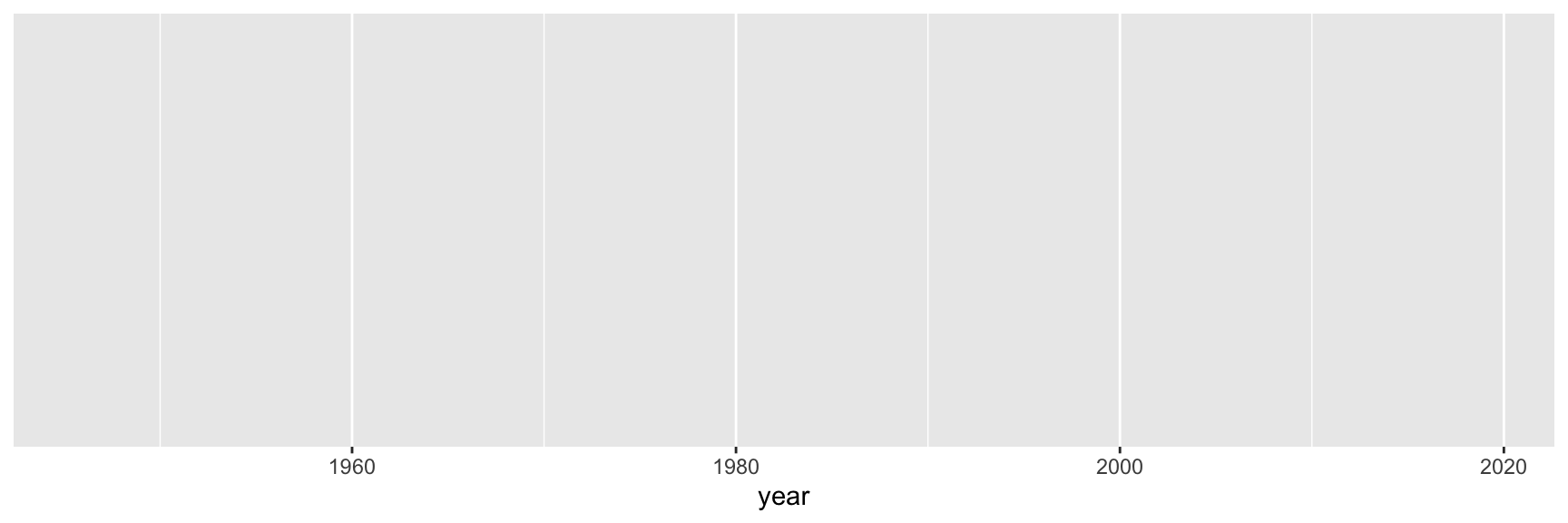
ggplot(data = us_uk_tr_votes, mapping = aes(x = year))

Step 3. Map variables to aesthetics

Map percent_yes to the y aesthetic
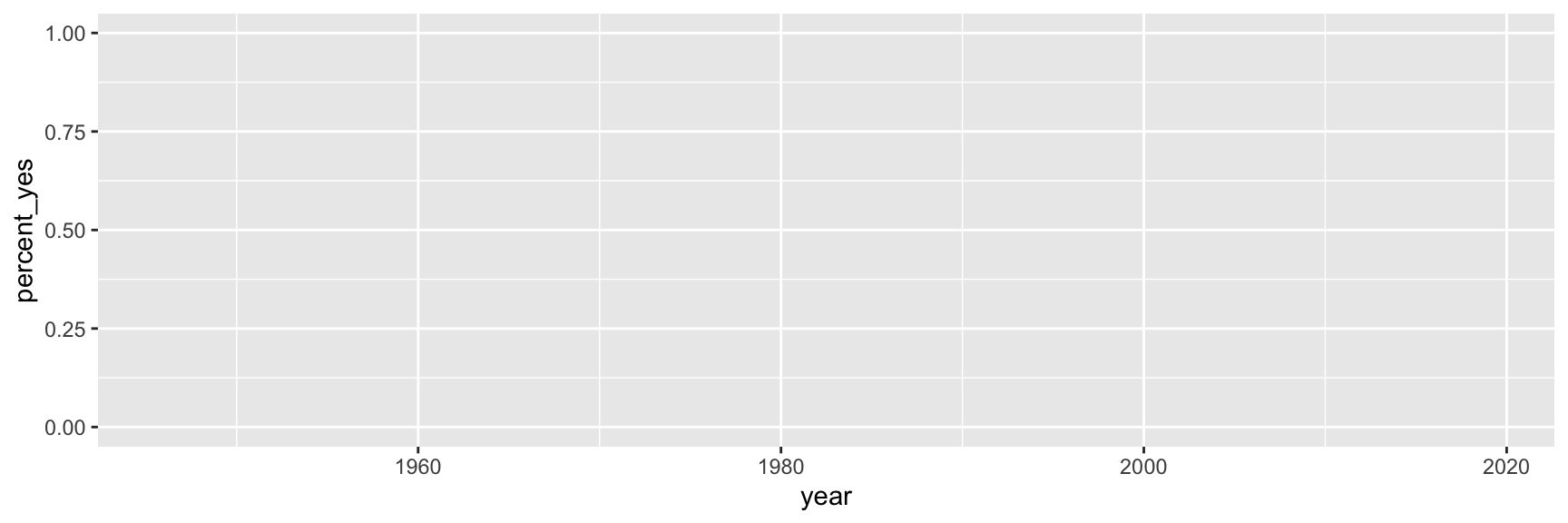
ggplot(data = us_uk_tr_votes, mapping = aes(x = year, y = percent_yes))

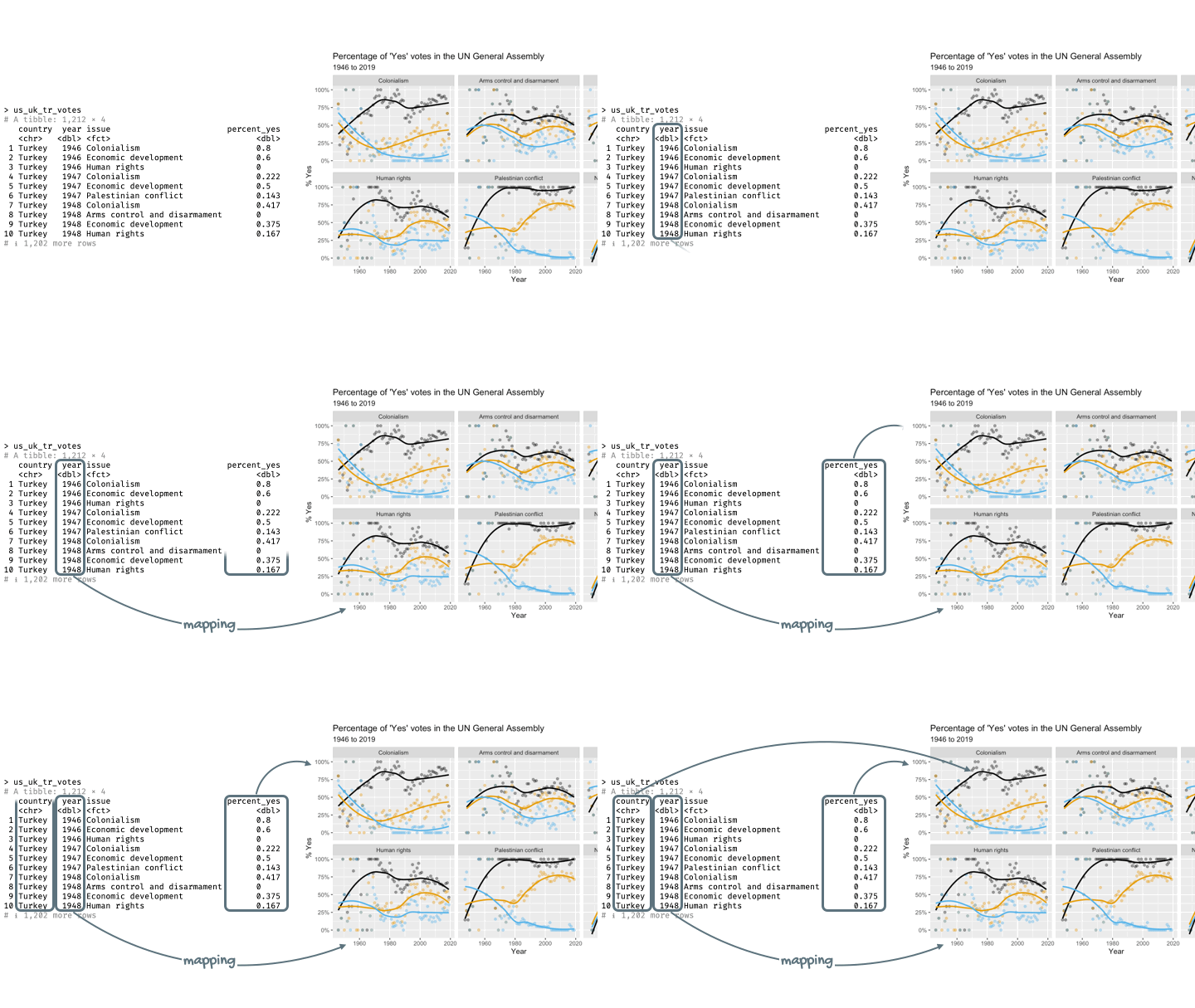
Mapping and aesthetics

  • Aesthetics are visual properties of a plot

  • In the grammar of graphics, variables from the data frame are mapped to aesthetics
Argument names

It’s common practice in R to omit the names of first two arguments of a function:

  • Instead of:
ggplot(data = us_uk_tr_votes, mapping = aes(x = year, y = percent_yes))
  • We usually write:
ggplot(us_uk_tr_votes, aes(x = year, y = percent_yes))

Step 4. Represent data on your canvas

with a geom
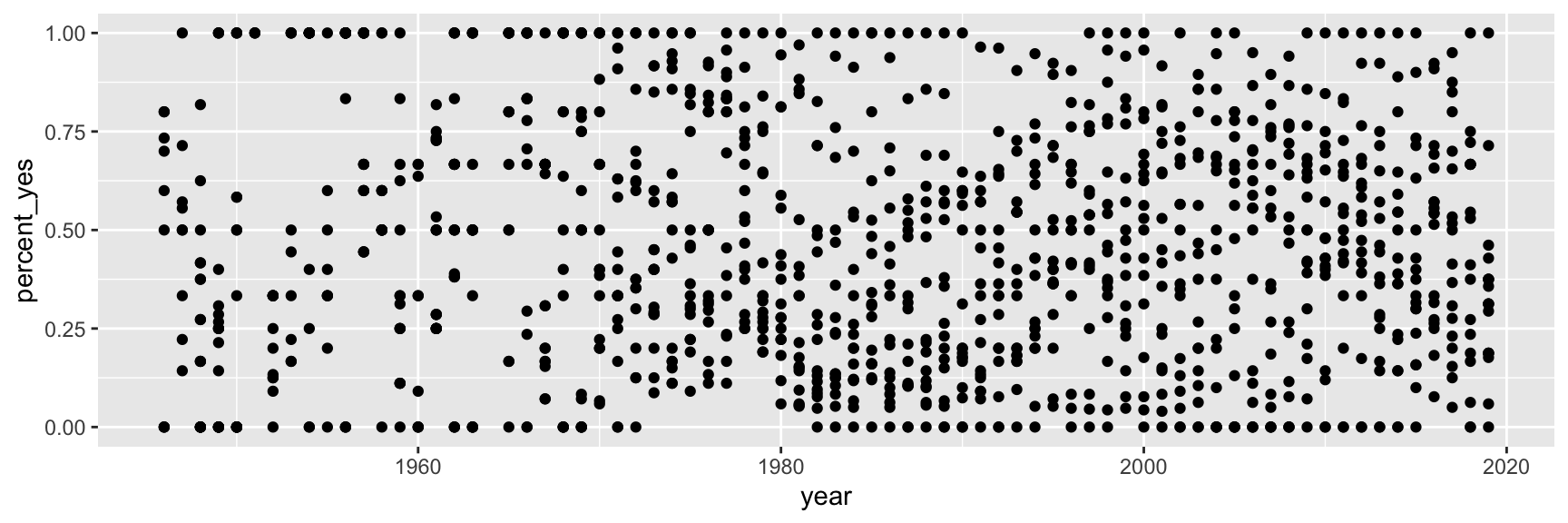
ggplot(us_uk_tr_votes, aes(x = year, y = percent_yes)) +
  geom_point()

Step 5. Map variables to aesthetics

Map country to the color aesthetic
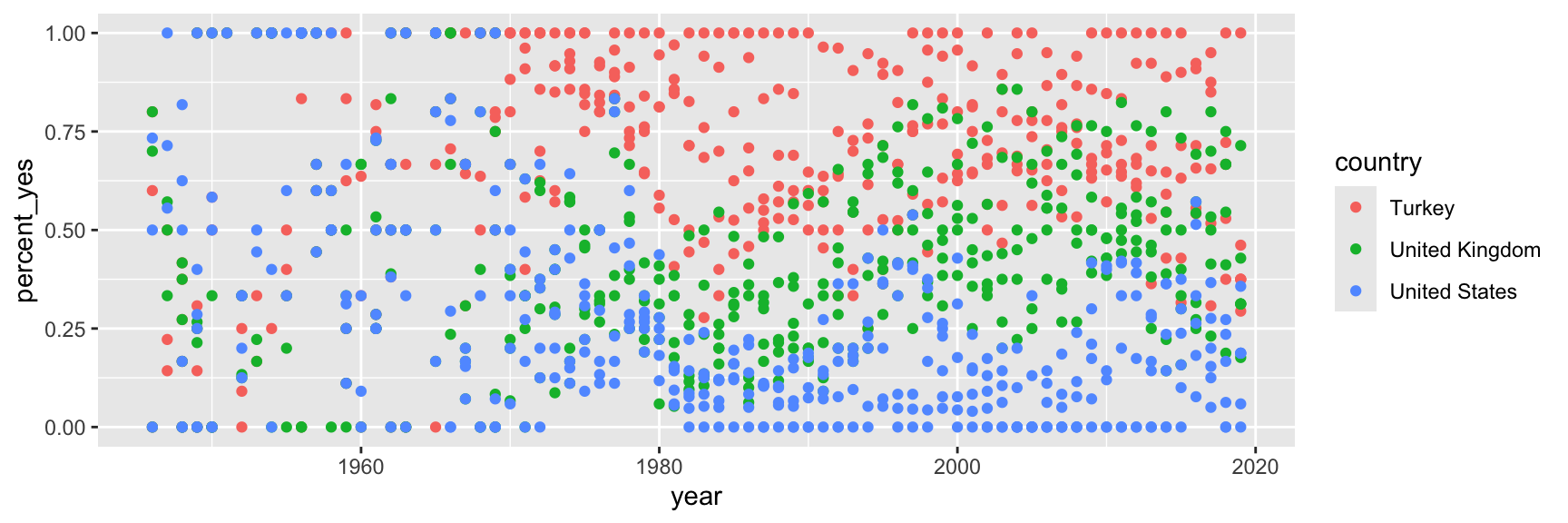
ggplot(us_uk_tr_votes, aes(x = year, y = percent_yes, color = country)) +
  geom_point()

Step 6. Represent data on your canvas

with another geom

ggplot(us_uk_tr_votes, aes(x = year, y = percent_yes, color = country)) +
  geom_point() +
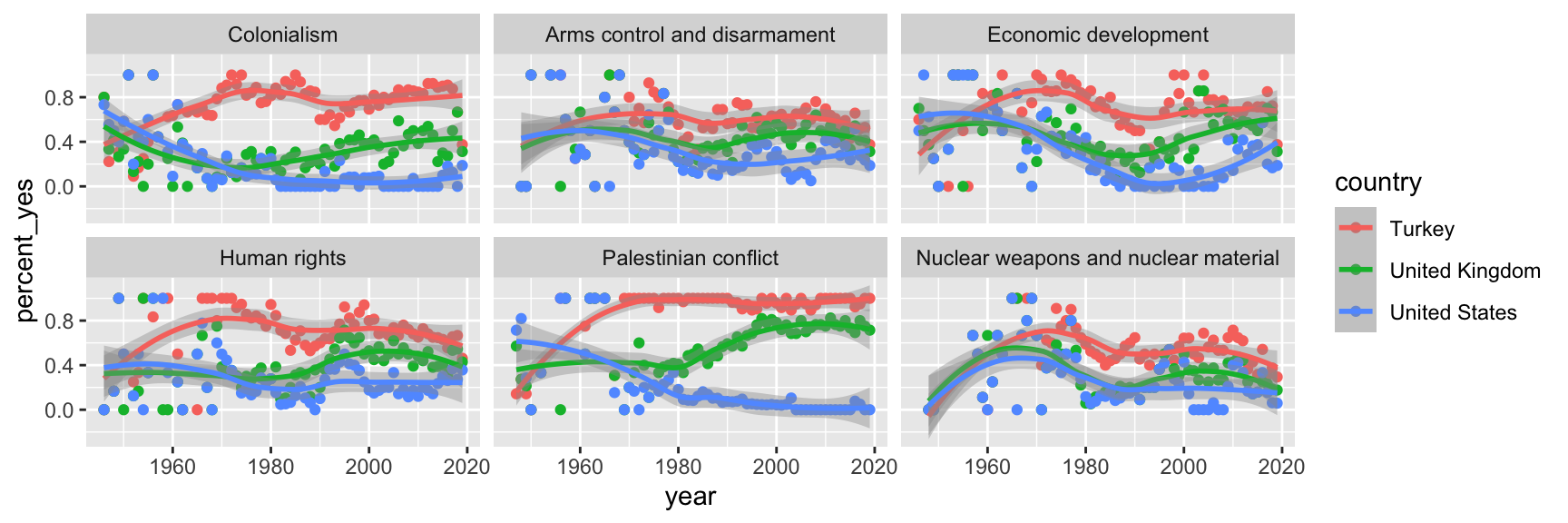
  geom_smooth()

Warnings and messages

  • Adding geom_smooth() resulted in the following warning:
`geom_smooth()` using method = 'loess' and formula = 'y ~ x'
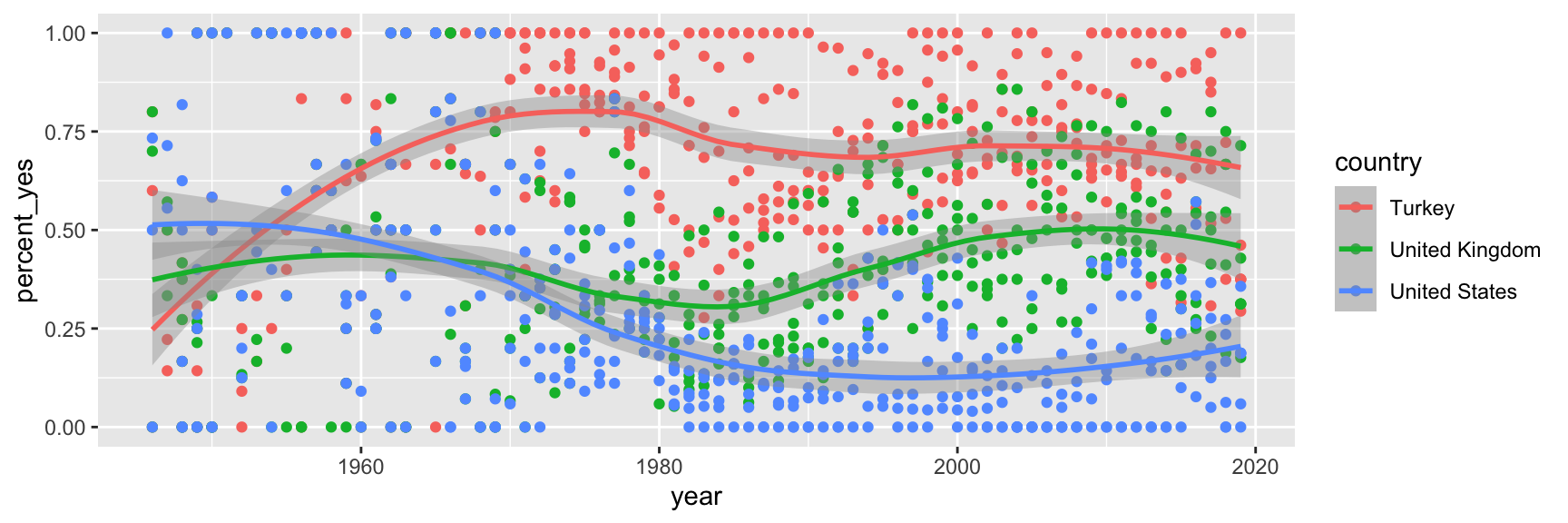
  • It tells us the type of smoothing ggplot2 does under the hood when drawing the smooth curves that represent trends for each country.
  • Going forward we’ll suppress this warning to save some space.

Step 7. Split plot into facets

ggplot(us_uk_tr_votes, aes(x = year, y = percent_yes, color = country)) +
  geom_point() +
  geom_smooth() +
  facet_wrap(~issue)

Step 8. Use a different color scale

ggplot(us_uk_tr_votes, aes(x = year, y = percent_yes, color = country)) +
  geom_point() +
  geom_smooth() +
  facet_wrap(~issue) +
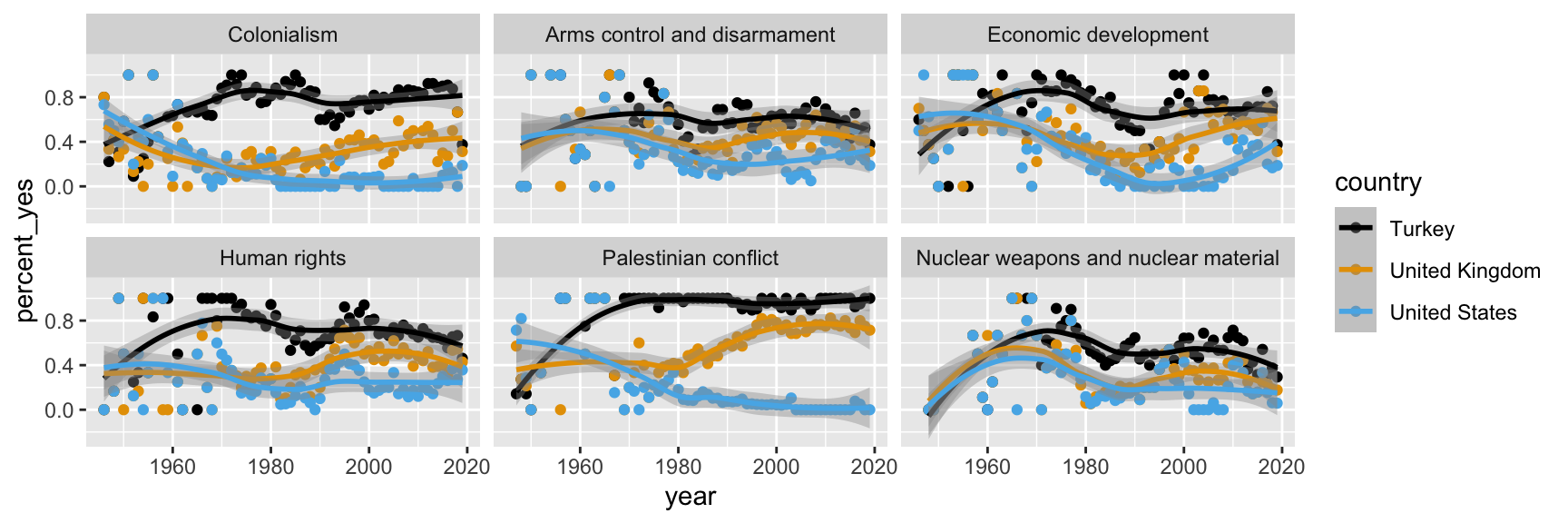
  scale_color_colorblind()

Step 9. Apply a different theme

ggplot(us_uk_tr_votes, aes(x = year, y = percent_yes, color = country)) +
  geom_point() +
  geom_smooth() +
  facet_wrap(~issue) +
  scale_color_colorblind() +
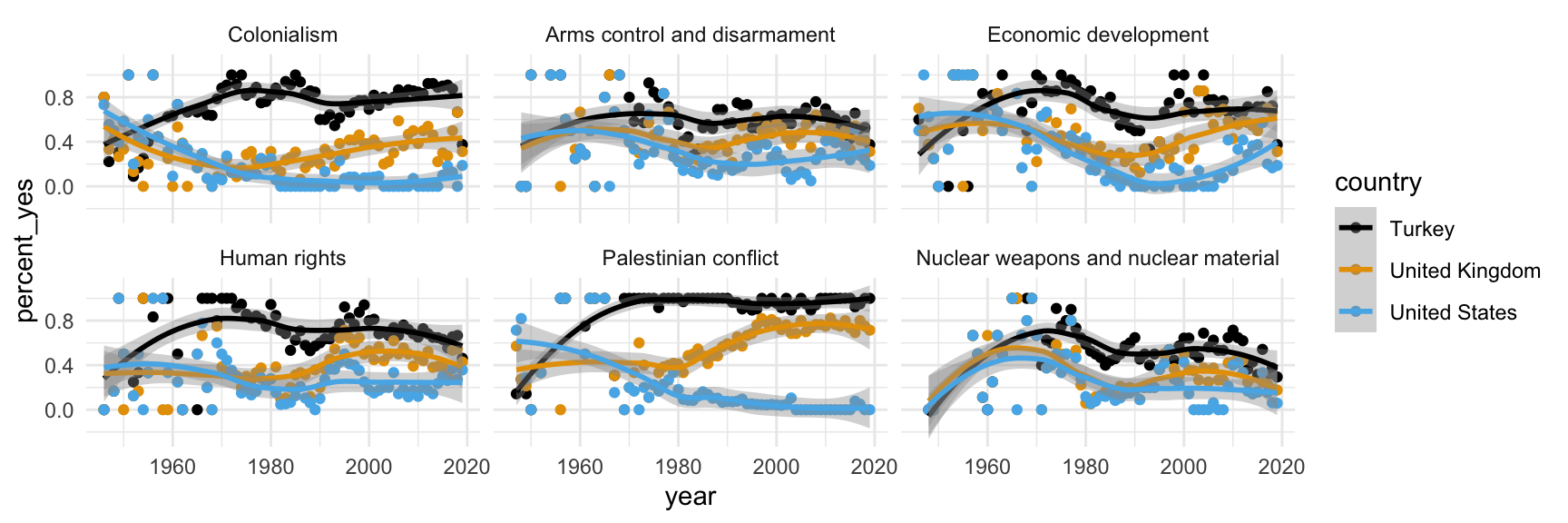
  theme_minimal()

Step 10. Add labels

ggplot(us_uk_tr_votes, aes(x = year, y = percent_yes, color = country)) +
  geom_point() +
  geom_smooth() +
  facet_wrap(~issue) +
  scale_color_colorblind() +
  theme_minimal() +
  labs(x = "Year", y = "% yes", color = "Country")

Step 11. Set transparency of points

with alpha
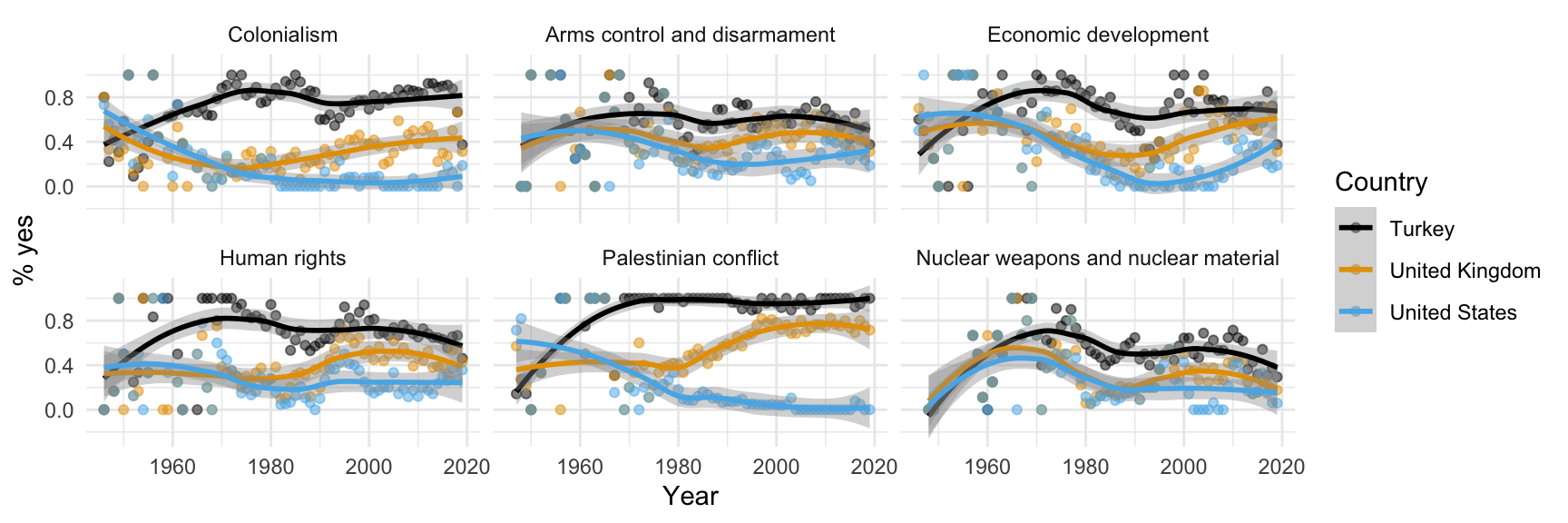
ggplot(us_uk_tr_votes, aes(x = year, y = percent_yes, color = country)) +
  geom_point(alpha = 0.5) +
  geom_smooth() +
  facet_wrap(~issue) +
  scale_color_colorblind() +
  theme_minimal() +
  labs(x = "Year", y = "% yes", color = "Country")

Step 12. Hide standard errors of curves

with se = FALSE
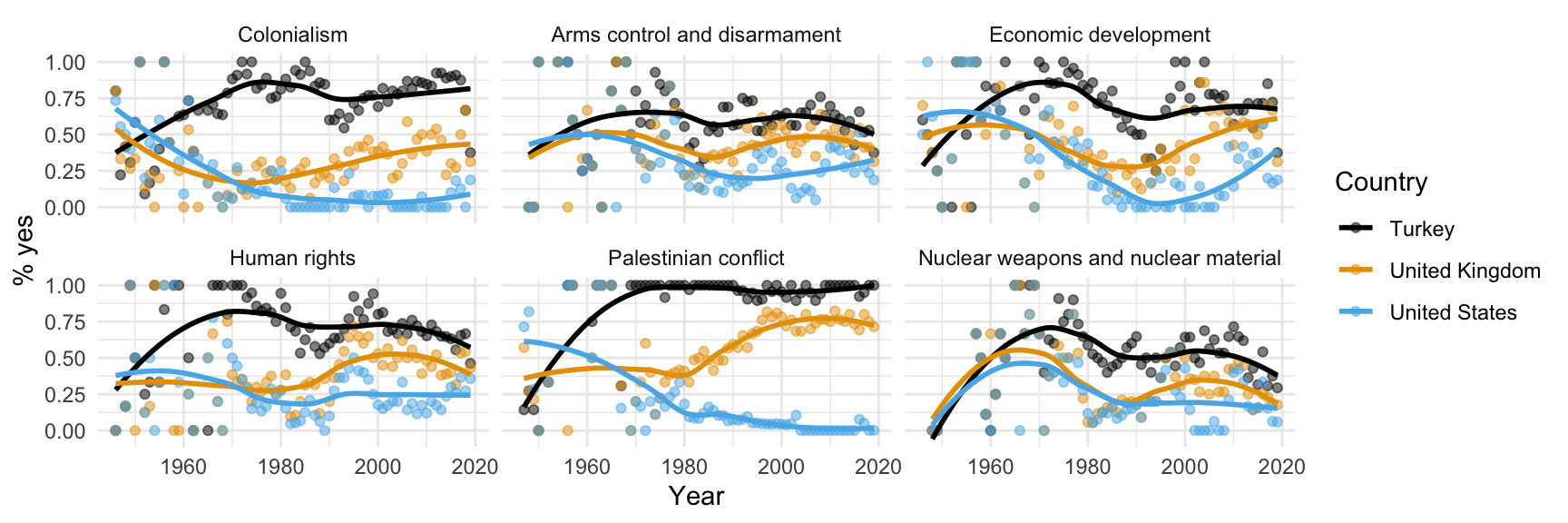
ggplot(us_uk_tr_votes, aes(x = year, y = percent_yes, color = country)) +
  geom_point(alpha = 0.5) +
  geom_smooth(se = FALSE) +
  facet_wrap(~issue) +
  scale_color_colorblind() +
  theme_minimal() +
  labs(x = "Year", y = "% yes", color = "Country")

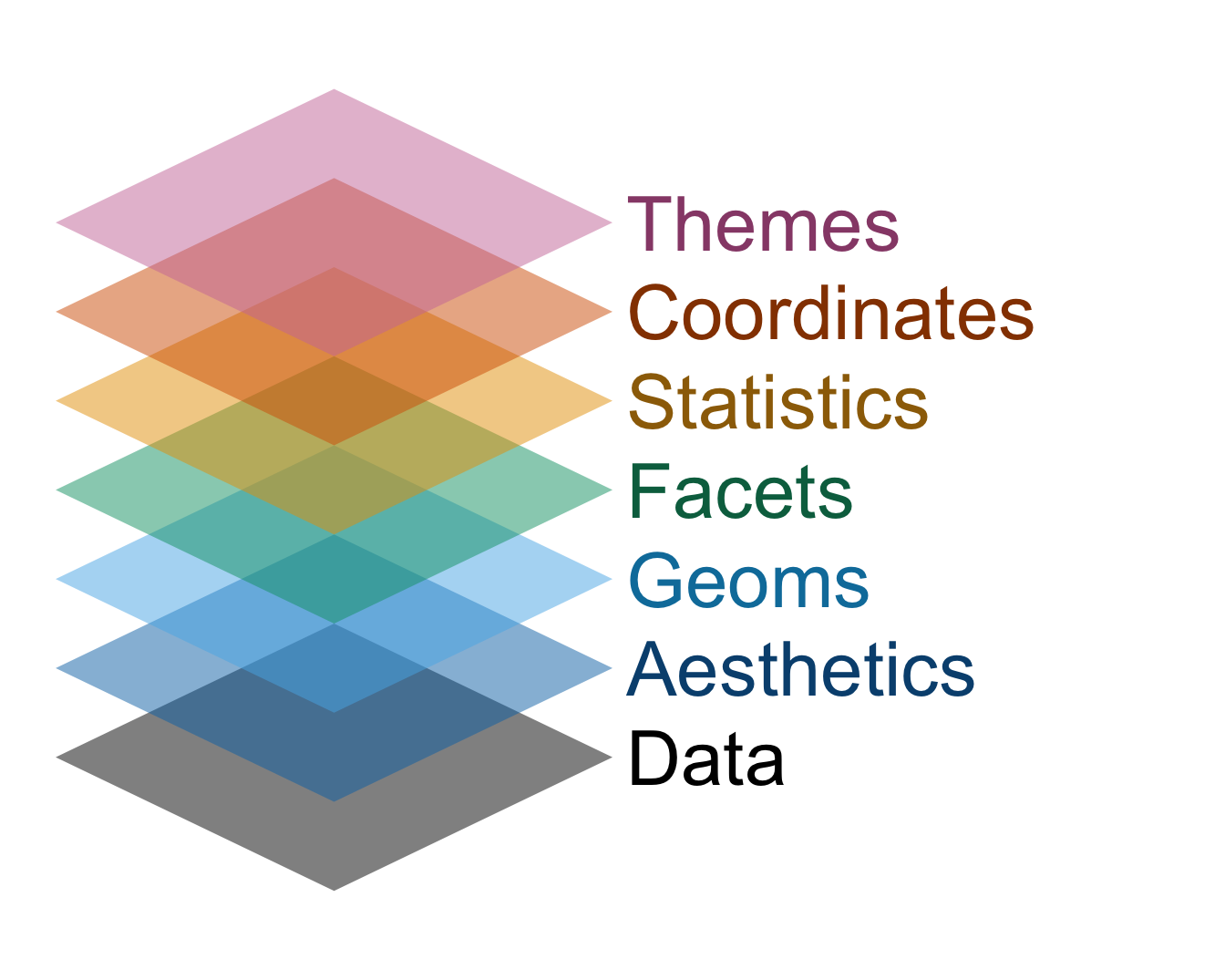
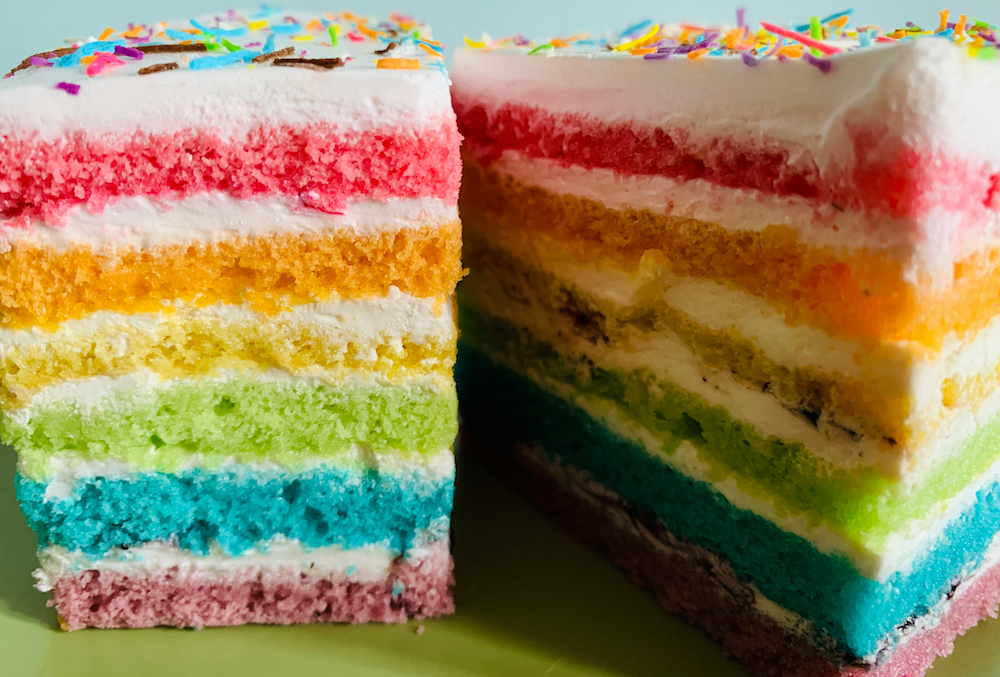
Data viz with ggplot is like building a cake
ggplot(
  us_uk_tr_votes, 
  aes(x = year, y = percent_yes, color = country)
  ) +
  geom_point(alpha = 0.5) +
  geom_smooth(se = FALSE) +
  facet_wrap(~issue) +
  scale_color_colorblind() +
  labs(
    x = "Year", 
    y = "% yes", 
    color = "Country"
  ) +
  theme_minimal()

The commands are the layers of sponge, and the plus signs are the icing. Don’t forget the icing!

Grammar of graphics

We built a plot layer-by-layer

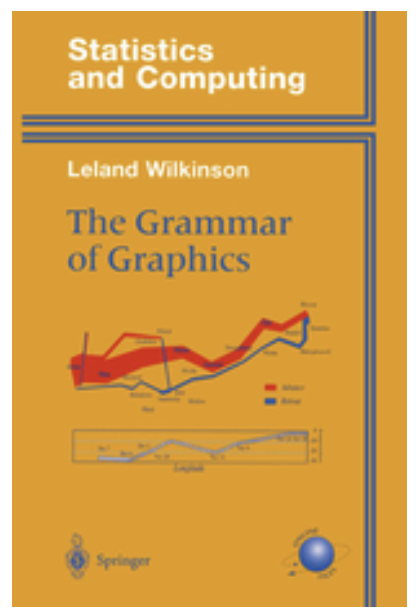
  • just like described in the book The Grammar of Graphics and
  • implemented in the ggplot2 package, the data visualization package of the tidyverse.
Now you try

  • On GitHub, your AE repo should now have a new file in it called ae-02-penguin-peekaboo.qmd;
  • In other words, the remote version of your repo in the cloud (GitHub) has updates that your local repo (container) does not yet have;
  • So pull them!